
AI-generated conceptual illustration; not an exact product depiction or an app screenshot.
Apple’s latest iPhone maintenance release targets restarts, a specific photo defect and an unresponsive touchscreen. Here’s how to prepare, install it and choose the next step if the update fails.
RESEARCH BRIEF · Last checked September 30, 2026 · 5 min read
Quick answer
iOS 27.0.1 was released on September 28, 2026. If your compatible iPhone offers it in Software Update, back up first, connect to power and Wi-Fi, then install. The strongest immediate reason is experiencing one of the problems Apple identifies below. Apple lists no published CVE entries for this release; that does not establish that a phone has no security risks. Apple’s release register
In this guide
- What iOS 27.0.1 fixes
- Which iPhones are eligible?
- A short checklist before you update
- If iOS 27.0.1 will not install
- What to watch after installation
- Frequently asked questions
What iOS 27.0.1 fixes
Apple identifies three issues addressed by this update:
- Unexpected reboots after an unsuccessful Face ID check on iPhone 18 Pro and Pro Max
- Unwanted color in certain 2x photographs taken at f/1.48, under particular lighting, on a small subset of those two models
- A touchscreen that stops responding when Notification Center and Control Center are opened at the same time
The first two fixes have explicit model limits. Apple does not attach that same restriction to the touchscreen issue. Its release notes do not promise a battery-life fix. This is a summary of Apple’s documentation, not a hands-on reliability test. Apple’s iOS 27 release notes
Which iPhones are eligible?
Apple’s compatibility guide covers the iPhone 11 through 17 families it lists, iPhone 16e, iPhone 17e, iPhone Air, iPhone 18 Pro and Pro Max, plus the second- and third-generation iPhone SE. Check your exact model under Settings → General → About if you are unsure. The first-generation SE is not on that list. Apple’s compatible-model guide
Installation eligibility is separate from feature availability. Apple says features and apps can differ by model, region, language and carrier. Being able to install iOS 27 does not mean every advertised capability becomes available on that phone. Apple’s compatibility and availability guidance
A short checklist before you update
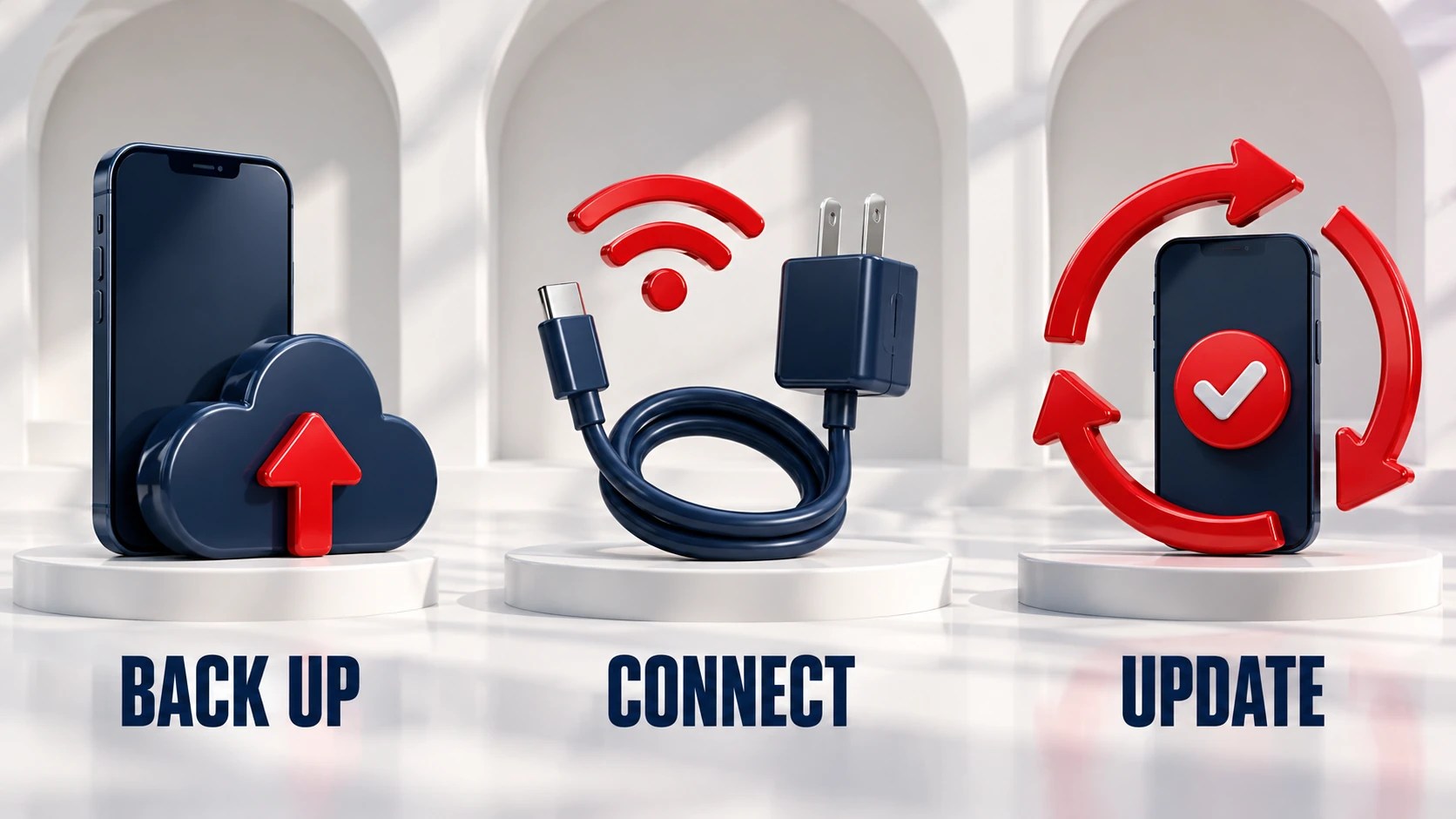
- Finish a backup. Apple supports iCloud and computer backups. Choose the method you can complete now rather than assuming a backup exists. Apple’s backup options
- Verify the backup time. For iCloud, open Settings → your name → iCloud → iCloud Backup, then choose Back Up Now. Remain on Wi-Fi until it finishes and check the date and time shown underneath. If storage prevents completion, resolve the backup problem before relying on it. Apple’s iCloud backup instructions
- Plug in and use Wi-Fi. Follow the preparation steps in Apple’s update guide. Set aside a period when you do not need the phone for an imminent call, ticket or journey. That timing is a practical precaution, not an estimated installation duration. Apple’s update instructions
- Read the version offered. Settings → General → Software Update shows the installed version and available updates. Check that you understand whether you are applying this patch or moving from an older major version. Follow the on-screen installation instructions. Apple’s update guide
Do not treat a backup as a promise that you can reverse the software change: Apple warns that installed iOS updates cannot be downgraded to the previous version. Apple’s software-update notice
If iOS 27.0.1 will not install
Start with the symptom rather than repeating the same attempt indefinitely:
- Not enough room: Review Settings → General → iPhone Storage. Apple’s troubleshooting guide suggests Offload Unused Apps as one way to make space.
- Slow download: Stay on Wi-Fi and pause other downloads. Download speed depends on the connection and update size.
- Server or verification error: Retry on the same network, then try another network or a computer.
- Repeated failure: In iPhone Storage, find the downloaded update and choose Delete Update. Return to Software Update to download it again. If it is missing from storage or fails again, use Apple’s computer-update route.
These steps follow Apple’s failed-update guide. Keep the phone powered during installation. A slowly moving progress bar needs different troubleshooting from a download error; use the progress and frozen-device links in that guide rather than assuming both have the same fix.
What to watch after installation
Avoid drawing a battery conclusion from the first few hours alone. Apple explains that post-update background work, including indexing and downloading assets, can temporarily affect heat and battery use, particularly after major releases. That explanation does not guarantee that every persistent problem will resolve itself. Apple’s explanation of update effects
For a useful before-and-after check, note the symptom you were trying to solve. If it returns, record the model, installed version and circumstances before contacting support. A repeatable description is more useful than a broad claim that the whole update is broken.
Frequently asked questions
Is iOS 27.0.1 a security update?
Apple’s release register says there are no published CVE entries for it. That is a disclosure status, not evidence that security is irrelevant or that every vulnerability has been eliminated. Apple’s security releases
Why has my phone not installed it automatically?
Apple describes a staged process: manual installation becomes available before notifications and automatic installation. You can check Settings yourself rather than waiting for an alert. This does not establish a country-by-country release schedule. Apple’s rollout explanation
Will it fix battery drain?
Apple’s iOS 27.0.1 notes do not identify a battery-drain fix. Do not install it expecting a guaranteed battery improvement. Apple’s release notes
Sources and methodology
This article synthesizes the linked official documentation and announcements, checked September 30, 2026. It is not a hands-on product test. Availability, features and published information may change.


Leave a comment