
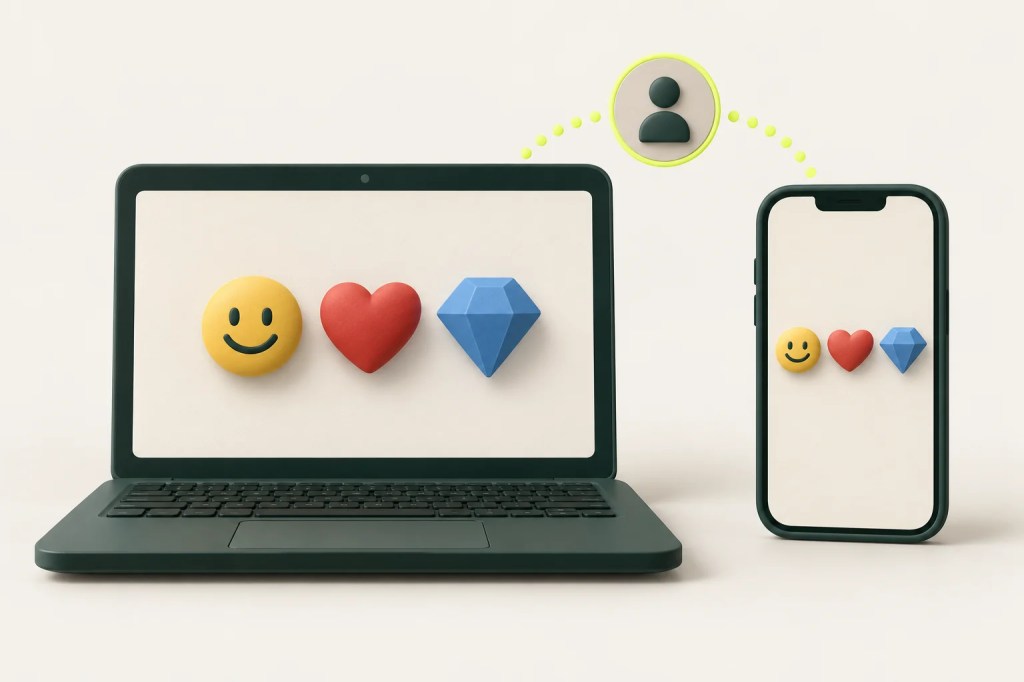
AI-generated conceptual illustration; not an exact product depiction or interface screenshot.
Missing the Google Messages web QR code? Pair with your Google Account and a matching emoji, troubleshoot the connection, and unpair shared computers.
By MundoGood · Updated September 30, 2026 · 2 min read
Quick answer
If you cannot find the QR code, use Google Account pairing instead. Google says QR pairing is no longer available in the US; its notice does not establish a worldwide removal. Google’s pairing guide
Pairing at a glance
- Phone: Choose your Google Account.
- Browser: Sign in with the same account.
- Phone: Confirm the matching emoji.
Pair with your Google Account
- On your phone, open Google Messages, tap your account icon, then Device pairing.
- Select a Google Account if prompted.
- On your computer, open Google Messages for web and sign in with that same account.
- On your phone, select the emoji matching the computer’s display. Pairing completes with a vibration.
You can pair multiple devices, but only one computer can be active at once. Setup instructions
Wrong account or no emoji prompt?
First compare the account shown in Google Messages on your phone with the browser’s Messages account. In Device pairing, choose Switch to Google Account pairing if your account picture is missing and that option appears. Complete the on-screen instructions again. Account-pairing troubleshooting
Paired, but the computer cannot connect?
Try these checks in order:
- Confirm both devices have internet access. Reconnect the phone’s Wi-Fi; restart the phone if its connection remains unreliable.
- Update Google Messages and check whether the browser has become unpaired.
- In Android settings, find Google Messages’ mobile-data controls and enable Background data. Menu names vary by phone.
- If Chrome alone fails, test extensions one at a time. If battery restrictions interrupt Messages, review its battery-optimization setting.
- After changing or resetting your phone, unpair the old connection and pair again.
These are selected steps from Google’s connection checklist. None guarantees a fix.
Before leaving a shared computer
In the web app, choose Menu → Unpair. Already left? On your phone, open Device pairing, select the computer’s delete control and confirm Unpair. There is also an Unpair all computers option. Unpairing instructions
Does signing in make this a cloud backup?
Do not treat pairing as a backup. Google describes the web app as showing the mobile app’s messages, using the phone connection for SMS and caching recent conversations in the browser. How the web app works
Related: How to copy text and reply in Google Messages
Editorial note: This AI-assisted guide synthesizes Google’s linked documentation, checked September 30, 2026. It does not claim hands-on testing.
Sources
- Check your messages on your computer or Android tablet
- Fix problems sending, receiving, or connecting to Google Messages — Computer


Leave a comment