
AI-generated conceptual illustration; not an exact product depiction or an app screenshot.
If familiar message controls seem to have moved, start with the message bubble. Here is the quickest route to copying text, replying to a specific message, and checking why an option is missing.
RESEARCH BRIEF · Last checked September 30, 2026 · 5 min read
Quick answer
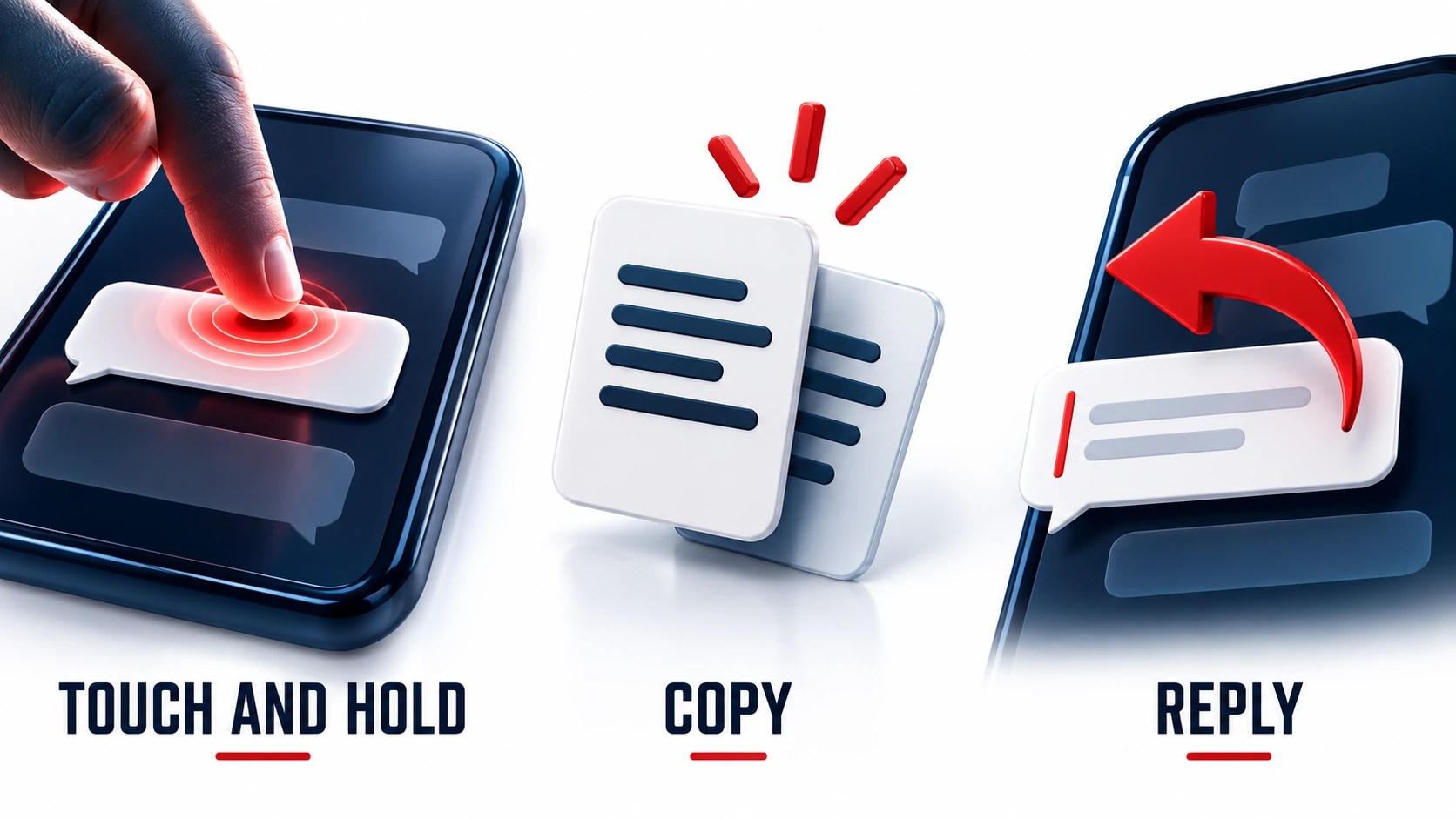
Touch and hold a message to find Copy and Reply below its bubble. You can also swipe right to quote a message. First check that you are using Google Messages. Google’s quick-actions guide · Reply instructions
In this guide
- Choose the action before changing settings
- How to copy a message
- How to reply to one specific message
- Why your screen may differ from a guide
- Troubleshooting checklist
- Frequently asked questions
Choose the action before changing settings
A missing control can mean several different things: you are looking in the wrong place, the action has a condition, or you are using a platform that does not offer it. Work through those possibilities before attempting a reset.
Use this short action map:
- Copy a message: Touch and hold its bubble, then choose Copy.
- Quote a message in your reply: Swipe right on it, or use Reply in the touch-and-hold menu when available.
- Correct something you sent: Check that it is less than 15 minutes old, then look for Edit.
- Copy a verification code: Use the dedicated Copy code control when one appears.
The sections below explain the limits behind those shortcuts. For an address or appointment time, copying may be enough. For a busy conversation with several questions, a quoted reply helps identify which question you are answering. Decide what you need the recipient to see before choosing an action.
How to copy a message
- Open Google Messages and enter the conversation.
- Touch and hold the message bubble.
- Choose Copy from the menu.
Copy captures the whole message. Google also documents copying selected portions but does not explain the selection-handle sequence. Check what is actually selected rather than assuming a particular gesture will work. Quick-actions documentation
Before pasting into an email or another chat, check the destination and the amount of text you copied. If you only need one detail from a longer conversation, avoid carrying unrelated information along with it.
How to reply to one specific message
- Open the conversation in the phone app.
- Swipe the target message from left to right.
- Type your response, check the quoted context, and send when ready.
Google’s reply documentation says the original message is quoted with your response. It also states that this feature needs chat features enabled. On a computer, you can view these replies but cannot send them, according to that guide. An ordinary response typed into the conversation and a reply quoting a particular bubble are therefore different tasks. Google’s reply guide
If quoted replies are unavailable, inspect the connection before concluding that the menu is broken. In Google Messages, open your profile picture or initial, then Messages settings, then RCS chats. A Connected status means you can use RCS with others who have it enabled. Connecting means your number is being verified. RCS settings and status
Why your screen may differ from a guide
There is a documentation wrinkle: the quick-actions page places Edit below the bubble, while the editing guide points to the top of the screen. Neither page provides a complete rollout schedule or a version-by-version interface map. We cannot use those pages to promise that every phone has the same layout today. Quick actions · Editing instructions
For editing, the important eligibility check is clearer: the 15-minute window runs from sending, even if the recipient has not read the message. Editing is available in the app, not the web interface. Google currently documents editing for RCS, SMS, and MMS; with SMS, the recipient receives another message starting with an asterisk. An edit should not be assumed to silently replace what everyone already saw. Edit behavior and limits
Troubleshooting checklist
- Identify the scope. Is only one action missing, or can you no longer send and receive messages at all?
- Check the app. Google recommends using the latest version and confirming Google Messages is your default texting app when troubleshooting delivery.
- Check delivery separately. If sending also fails, inspect signal, airplane mode, carrier support, and available plan credit. A layout difference alone does not prove a network problem. Google’s troubleshooting checklist
- Read the RCS status. Google warns against repeatedly turning RCS off and on because doing so removes you from group chats. If number verification shows trouble connecting for more than 30 minutes, its guide directs you to Details, then Submit feedback. RCS troubleshooting guidance
Frequently asked questions
Do I need RCS just to open the menu?
No. Google says touch-and-hold works across message types, not only RCS. Individual actions still have their own conditions. Menu support
Can I copy only a sign-in code?
When the dedicated control appears, open the code message, choose Copy code, and paste it into the app or website where you initiated sign-in. Google says the feature does not send the message or verification code to its servers. Never send a sign-in code to someone requesting it in a chat. Code-copy instructions
Should I reinstall if Copy or Reply looks different?
Start with the checks above. These sources do not establish reinstalling as a way to force a particular menu layout. Record the missing action, whether you are on phone or web, and any visible error before seeking help. That gives support a more useful starting point than simply saying the update changed everything.
Sources and methodology
This article synthesizes the linked official documentation and announcements, checked September 30, 2026. It is not a hands-on product test. Availability, features and published information may change.
- Touch-and-hold navigation and supported message types
- Swipe reply; RCS/chat-features and desktop limits; code copying
- Settings route, connection status, warning about repeated toggling
- 15-minute edit window; app-only; SMS behavior; differing Edit control position
- Update/default app and delivery checklist
More Google Messages help
Pair Google Messages for web · Understand RCS connection statuses


Leave a comment